Are you ready to upgrade your RaceBase system to include the new RaceBase Mobile? These instructions will walk you through upgrading your existing computer and RaceBase to the latest version, connecting you to our new Cloud Server and finally connecting all of your data to the RaceBase Mobile App.
If you are a new customer setting up a new system for the first time, please click on Setting Up My New RaceAir Cloud here for initial setup instructions.
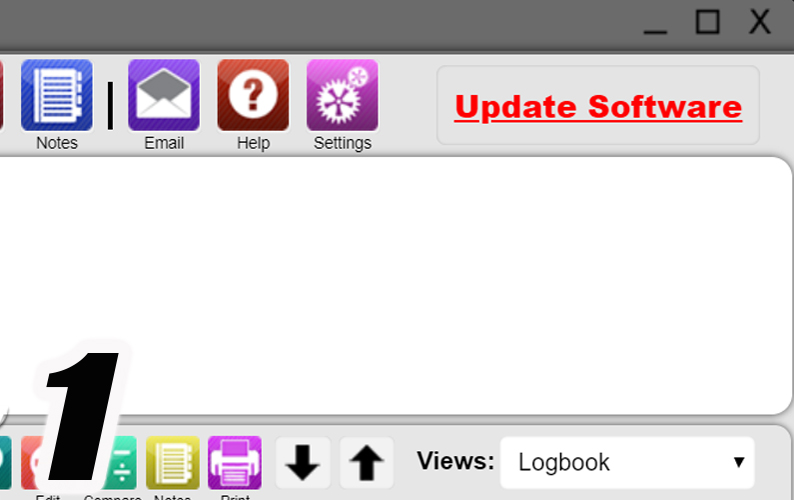
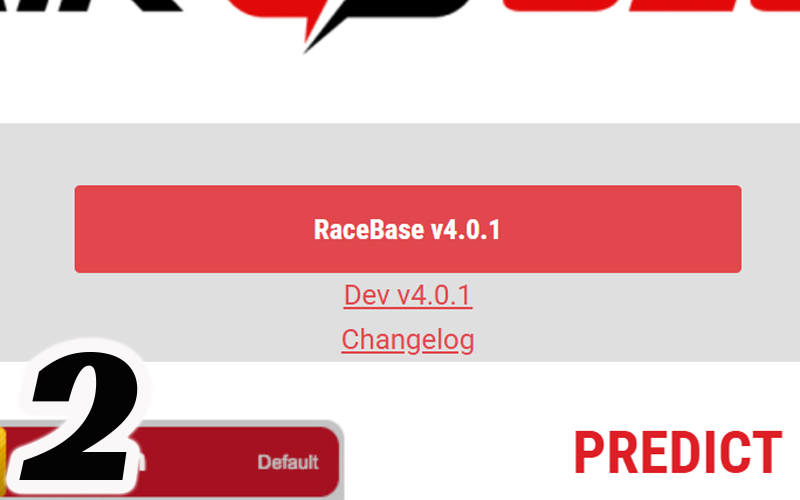
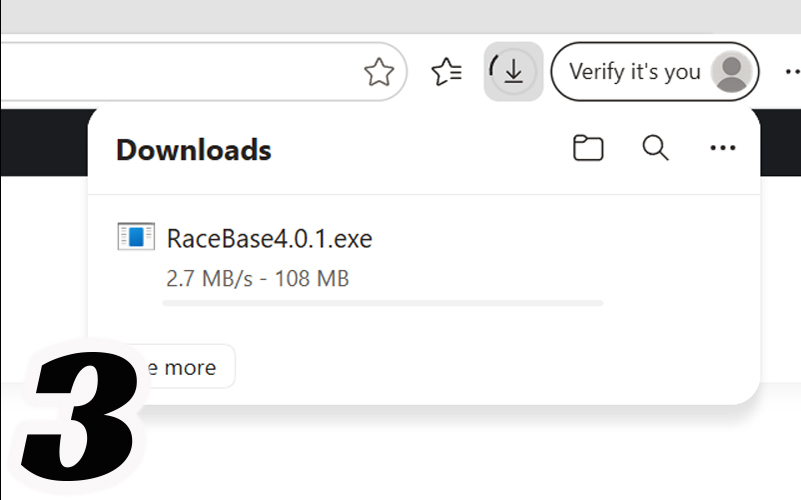
First we need to update your existing RaceBase program to the latest version. To do this, the easiest way is to open RaceBase and click on the Update Software option in the top right. This will open up an internet browser with our technical support page. There you should se a link to download RaceBase version 4.0 or above.
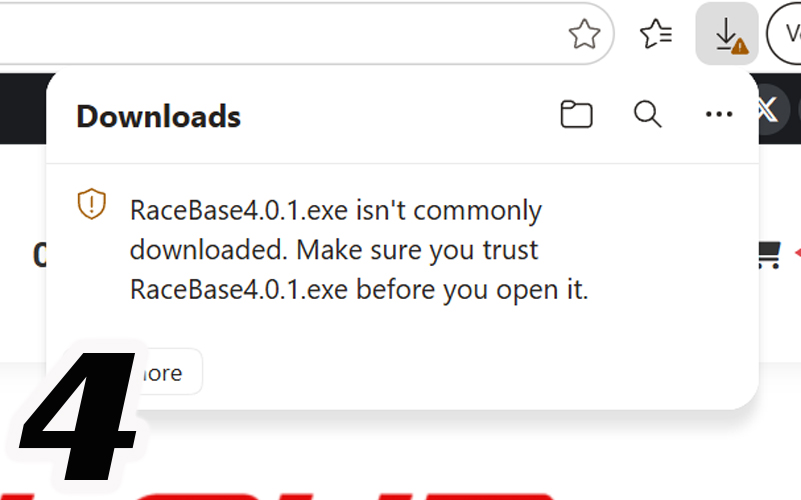
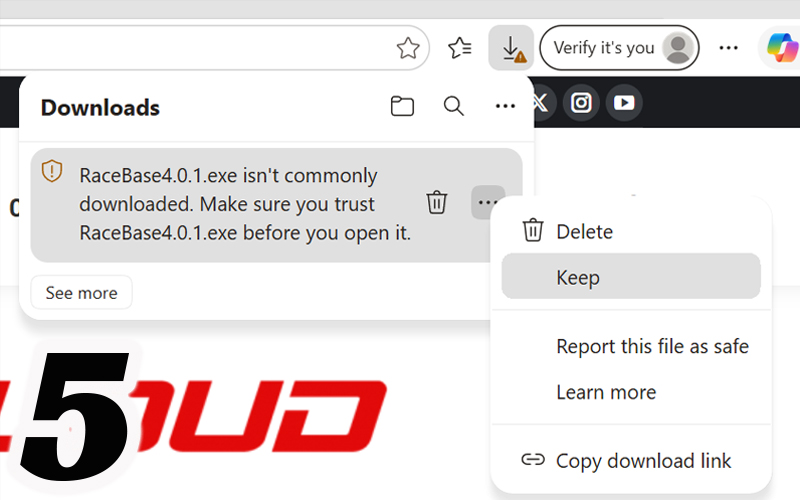
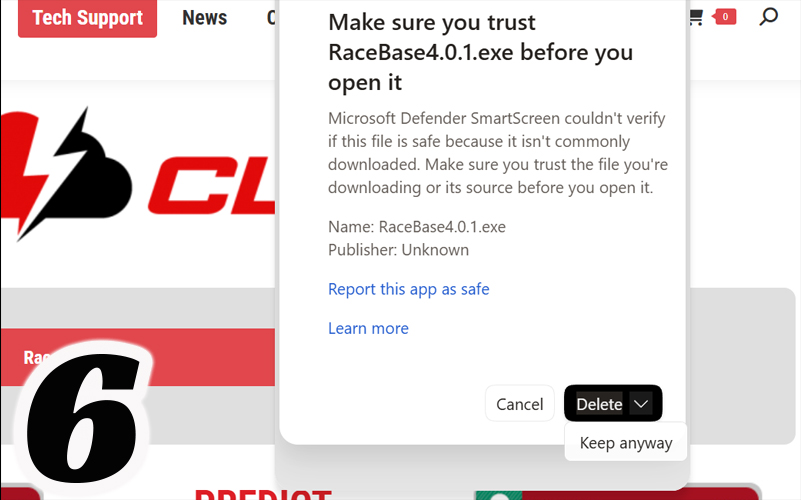
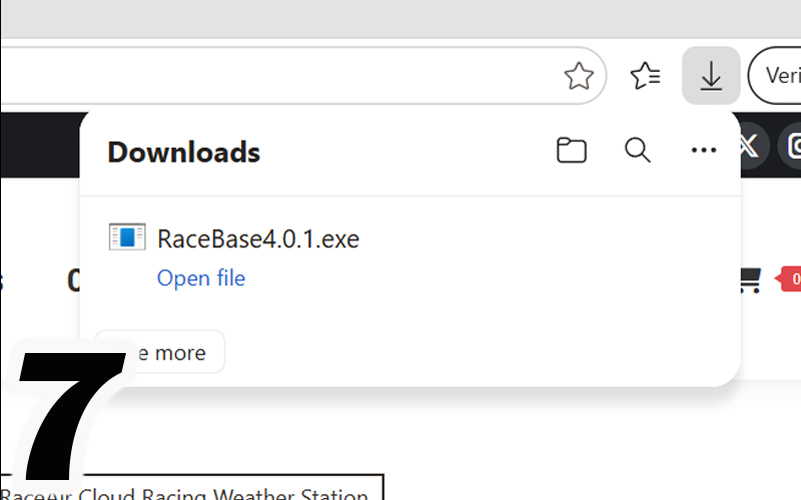
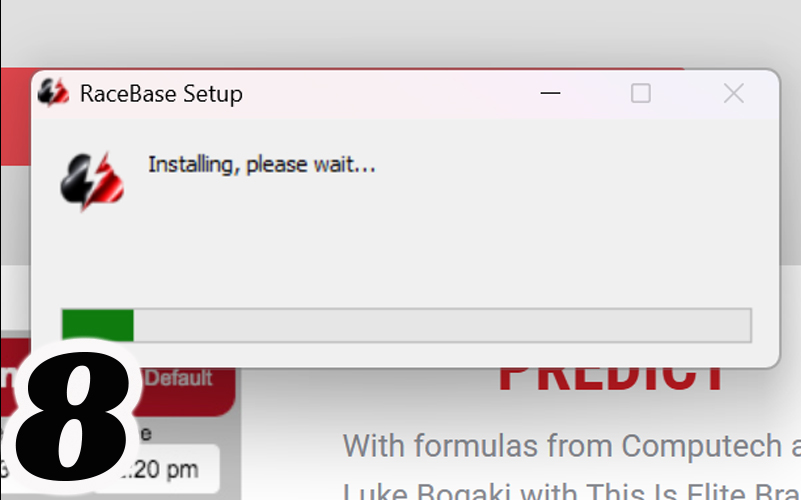
After it is done downloading it may say that it is not commonly downloaded. Simply mouse over that text and click on the 3 dots to the right, then hit Keep. A window will appear to make sure you trust RaceBase, to the right of the Delete button click on the arrow and say Keep Anyway. Wait for it to finish checking it and then it should give you the option to Open File, click on that and Install.
First we need to update your existing RaceBase program to the latest version. To do this, the easiest way is to open RaceBase and click on the Update Software option in the top right. This will open up an internet browser with our technical support page. There you should se a link to download RaceBase version 4.0 or above.
After it is done downloading it may say that it is not commonly downloaded. Simply mouse over that text and click on the 3 dots to the right, then hit Keep. A window will appear to make sure you trust RaceBase, to the right of the Delete button click on the arrow and say Keep Anyway. Wait for it to finish checking it and then it should give you the option to Open File, click on that and Install.